

设备强制注册
设备强制注册
功能简介
在 FortiOS 7.2.11/7.4.8/7.6.5 及后续版本的适用硬件机型上,FortiGate 启用“强制注册”机制。该机制要求设备先完成 FortiCare 注册,再开放完整配置与后续升级能力。
FortiOS 7.2.11/7.4.8:引入强制注册机制(仅如下机型)。FG-200GFG-201GFG-900GFG-901G
FortiOS 7.4.9:扩大机型范围。- FortiGate:
FG-50G/51G、FG-70G/71G、FG-90G/91G、FG-120G/121G、FG-200G/201G、FG-700G/701G、FG-900G/901G及对应 SFP/POE/DSL/5G 变体。 - FortiWiFi:
FWF-50G/51G、FWF-70G/71G及对应 DSL/5G/SFP/POE 变体。 - FortiGate Rugged:
FGR-50G-5G、FGR-70G、FGR-70G-5G-DUAL。
- FortiGate:
FortiOS 7.4.10:新增网络连通向导、离线许可证上传入口,并支持最多 7 天延后注册。FortiOS 7.6.5:在 7.6 分支启用该机制,并增加 CLI 只读限制与相关向导能力。
未注册行为
设备未完成注册时,会出现以下限制:
首次登录 GUI 会进入
Register with FortiCare页面,无法继续后续 GUI 配置。CLI 处于受限状态,仅允许网络相关部分配置。
config firewallconfig ftp-proxyconfig routerconfig systemconfig web-proxy
固件升级能力也受注册状态限制。
设备需要可以连接到 FortiGuard 才能完成注册(或导入离线 License)并解除以上限制。
Workaround
延期注册(7.4.10 开始)
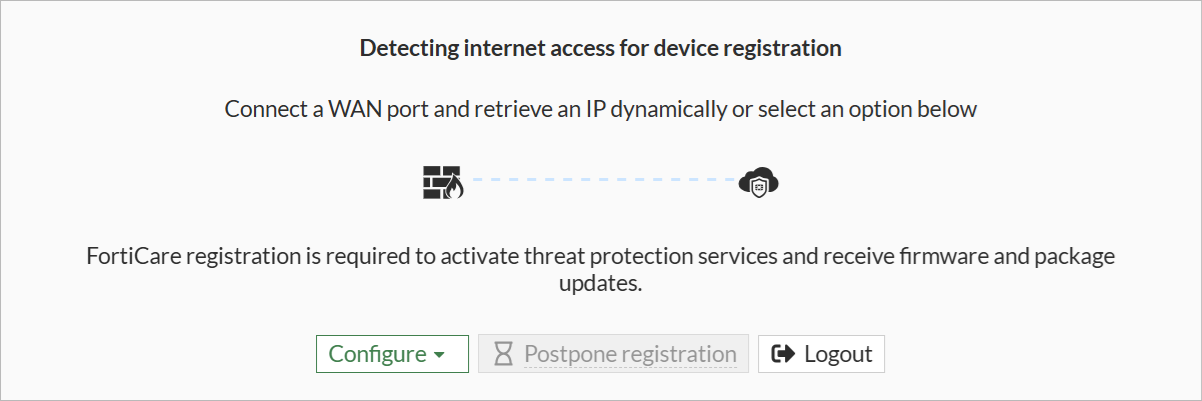
点击注册窗口内的“Postpone registration”按钮可以延期 7 天,期间可以正常通过 GUI 配置 FortiGate:

延期到期后会重新进入强制注册状态,无法继续延期:
离线许可证方式
提示
- 适用于无法直连互联网、但需要满足强制注册机制的场景。
- 离线许可证文件中的序列号必须与设备序列号一致,系统才会判定注册有效。
- 离线 License 的下载方法可参考系统管理 → FortiGuard 管理 → 离线导入设备 License 章节。
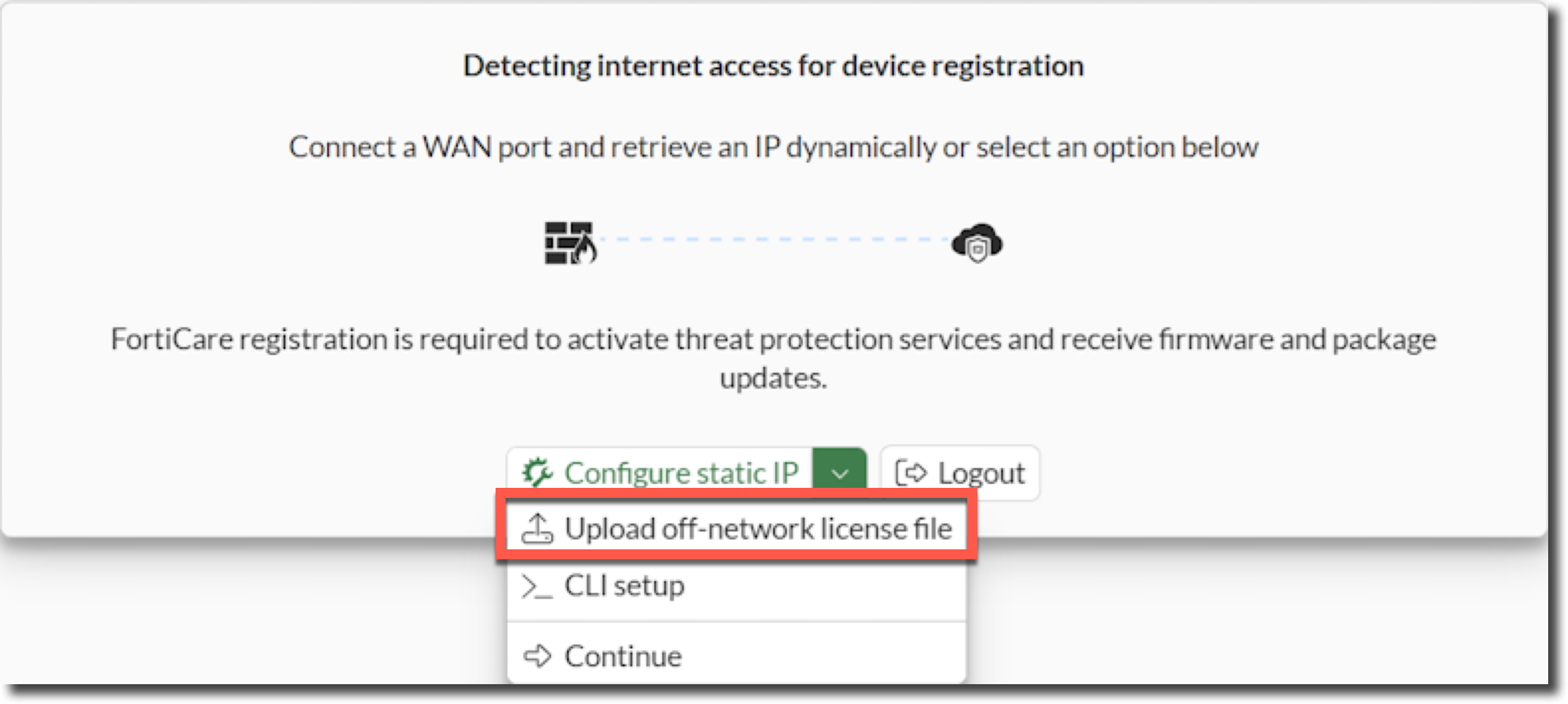
设备登录后,在注册向导中选择离线 License 导入入口:
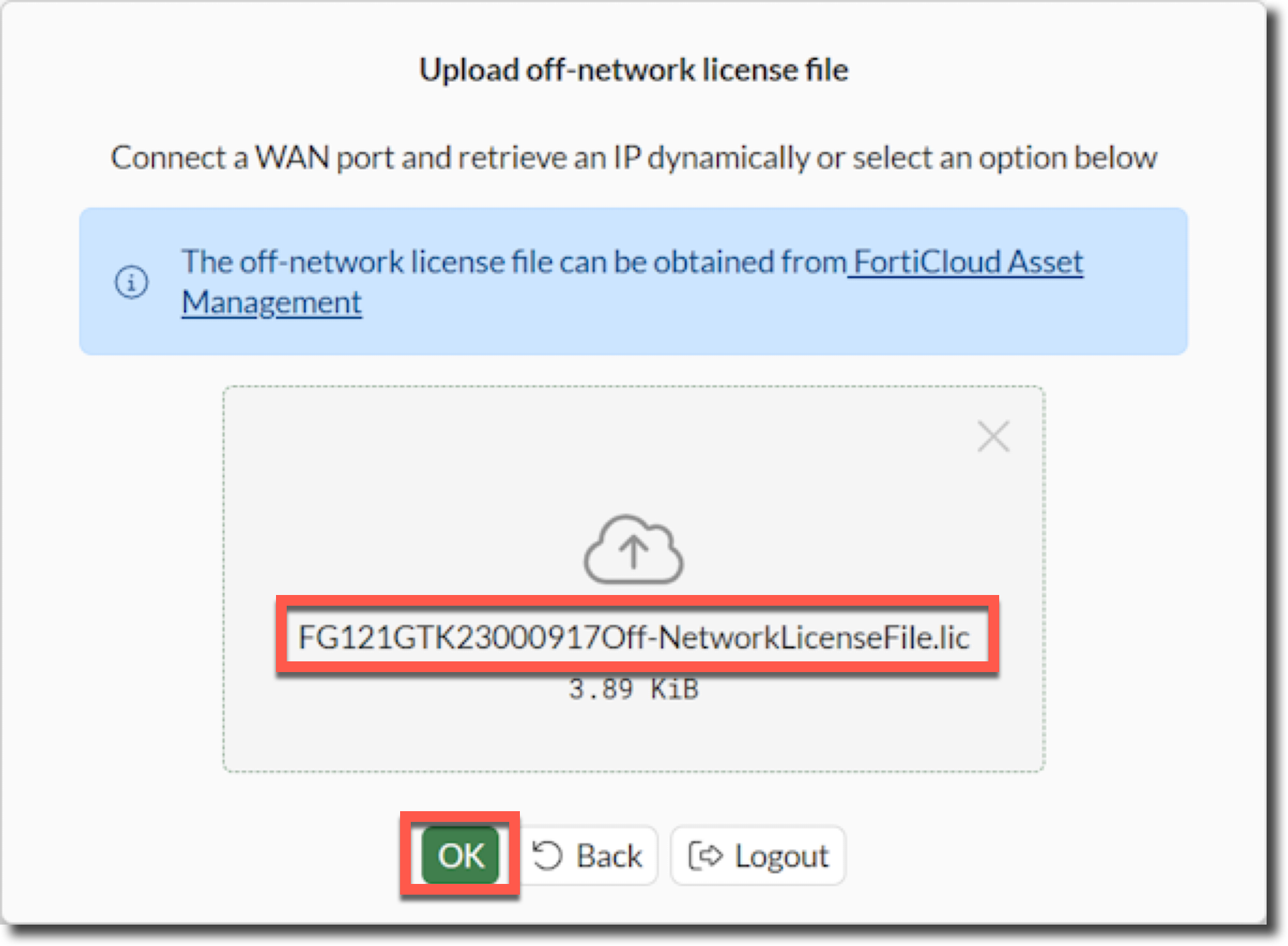
进入上传页面后,导入离线 License 文件:
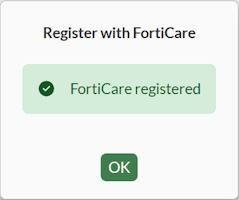
导入成功且序列号匹配后,页面会提示离线 License 生效:
也可使用 CLI 方式导入,CLI 导入前,需先保证 FortiGate 到 FTP/TFTP 服务器网络可达:
execute restore manual-license {ftp|tftp} <licensefilename> <server> [args]

execute restore manual-license tftp FG101FTKxxxxxxxxOff-NetworkLicenseFile.lic 192.168.1.10
BIOS 禁用强制注册
使用 Console 线连接设备串口并重启设备。
启动时看到以下提示,按任意键进入 BIOS 菜单:
Boot up, boot device capacity: 28626MB.
Press any key to display configuration menu...
在 BIOS 主菜单输入
I,进入系统信息菜单:[C]: Configure TFTP parameters. [R]: Review TFTP parameters. [T]: Initiate TFTP firmware transfer. [F]: Format boot device. [B]: Boot with backup firmware and set as default. [I]: System configuration and information. [Q]: Quit menu and continue to boot. [H]: Display this list of options.在下一层菜单输入
C,进入 FortiCare 注册级别设置:Enter C,R,T,F,B,I,Q,or H: [S]: Set serial port baudrate (will take effect on next boot). [R]: Set restricted mode. [T]: Set menu timeout. [U]: Set security level. [C]: Set FortiCare registration. [I]: Display system information. [E]: Reset system configuration. [M]: Display SPD information. [Q]: Quit menu and continue to boot. [H]: Display this list of options.输入
1,将注册级别从2(Enforce)改为1(Not Enforce):Enter S,R,T,U,C,I,E,M,Q,or H: [1]: Not Enforce [2]: Enforce Enter FortiCare registration setting [2]: 1连续输入
Q退出 BIOS 菜单并继续启动系统。启动后 GUI 可临时跳过强制注册继续配置。