设备注册步骤
2025/10/29大约 2 分钟
设备注册步骤
1. 设备注册的两种方法
- 登录设备在管理界面注册(推荐):
- 不需要 FortiCloud Key。
- 可避免因序列号录入错误导致误注册。
- 即使暂时没有 FortiCloud Key,也可以顺利注册。
- 登录 https://support.fortinet.com/asset/#/dashboard 进行注册:
- 注册时通常需要 FortiCloud Key(可在设备面板查看)。
- 如果设备上架后无法获取 FortiCloud Key,建议改为登录设备管理界面注册。
需要 FortiCloud Key 的型号说明
- FortiGate:
- FGT-100 及以下型号需要 FortiCloud Key。
- FGT-200 系列及以上型号注册时不需要 FortiCloud Key。
- FortiSwitch:全系列均需要 FortiCloud Key。
- FortiAP:全系列均需要 FortiCloud Key。
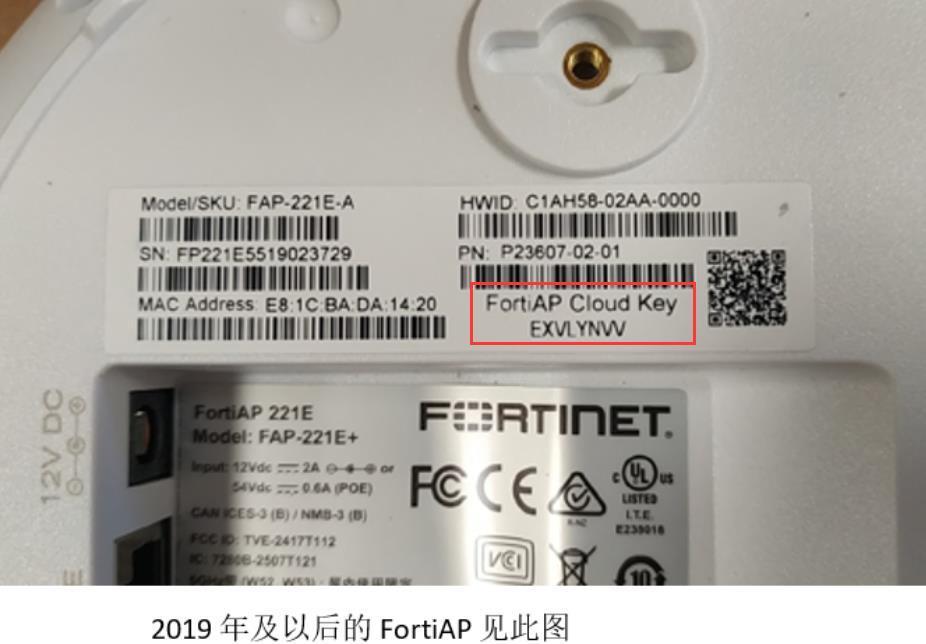
FortiCloud Key 位置说明
- 2018 年生产设备:FortiCloud Key 位于面板上方。
- 2019 年及以后生产设备:FortiCloud Key 位于设备背面,与产品序列号在一起。
2. 登录设备注册(推荐)
登录设备,确保设备可以连接 Internet(该步骤必须)。
进入
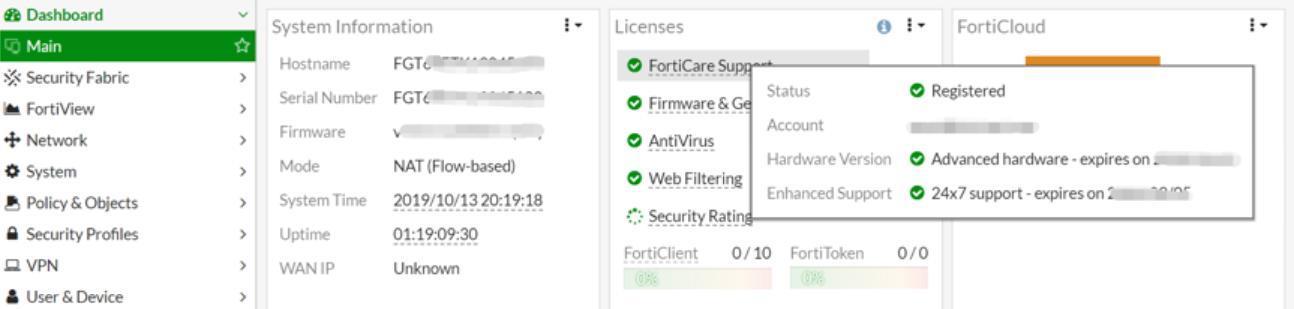
Dashboard -> Main -> Licenses,点击FortiCare Support下的Register。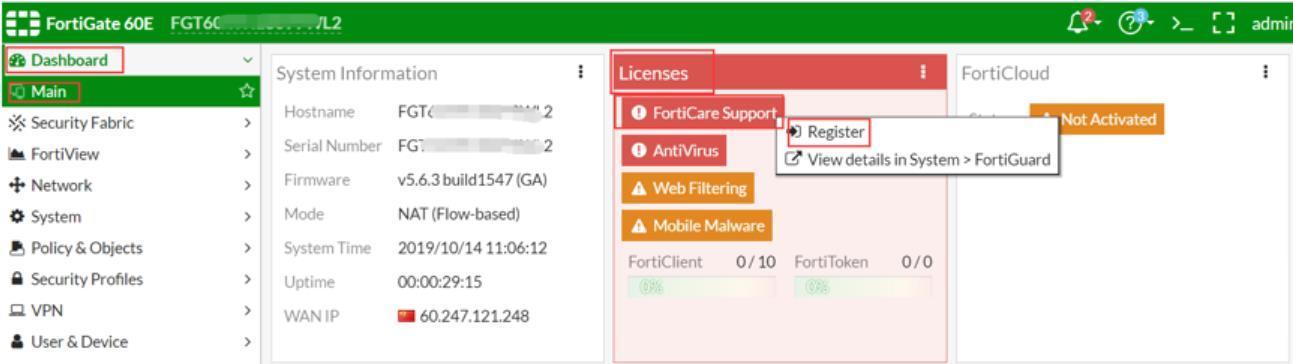
在弹出的注册页面中输入账号、密码,选择国家和代理商,点击
OK。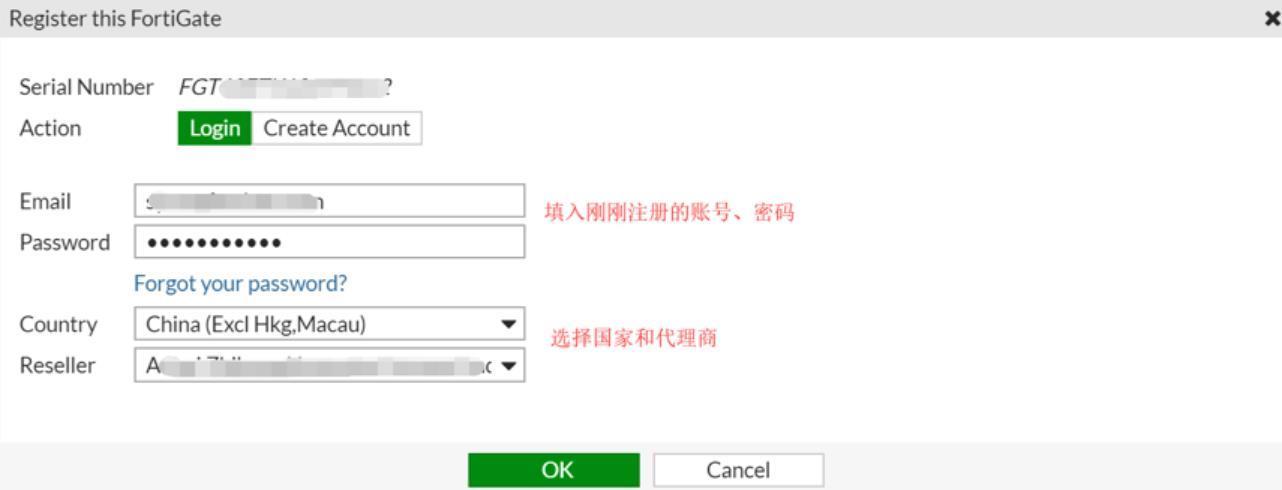
完成注册。
3. 登录 Support.fortinet.com 注册
访问
https://support.fortinet.com,点击Login Now。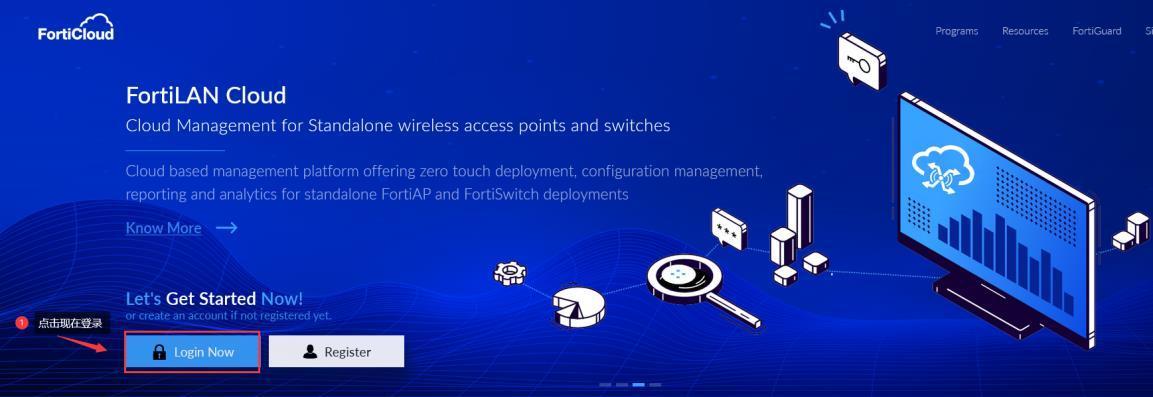
输入注册邮箱和密码,点击
Login。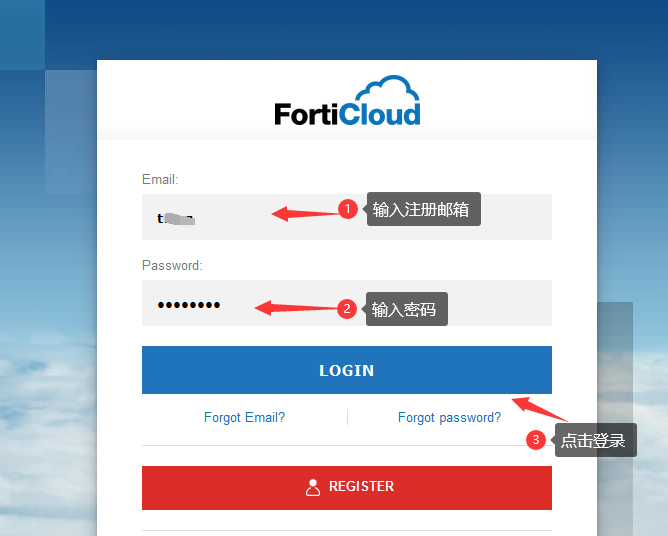
进入账户后点击
Register Now,开始注册设备。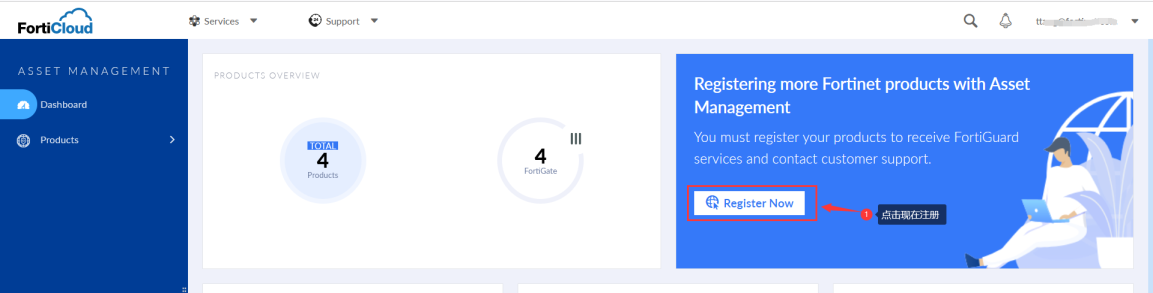
输入要注册设备的 16 位序列号(SN),点击
Next。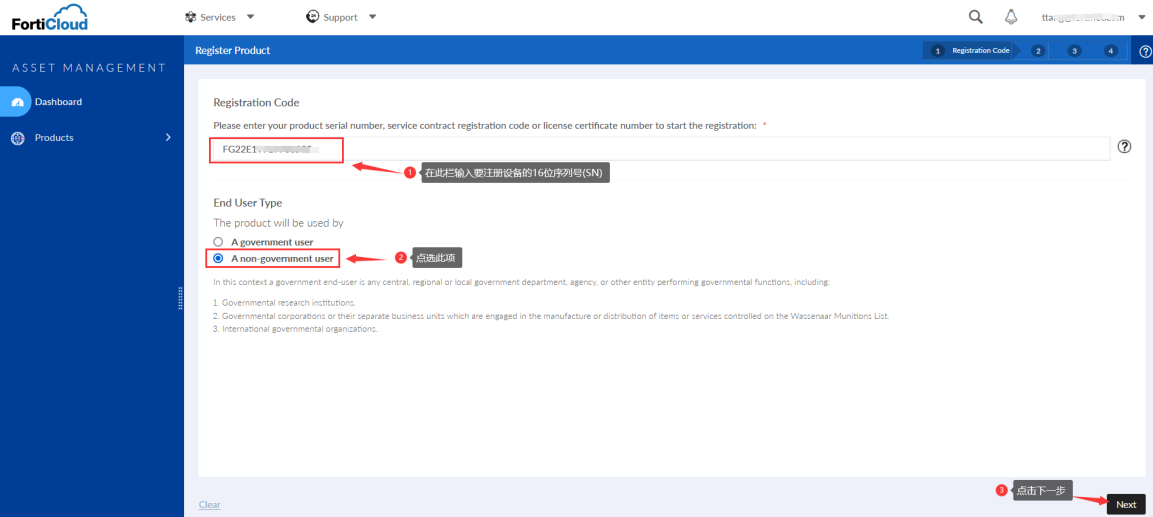
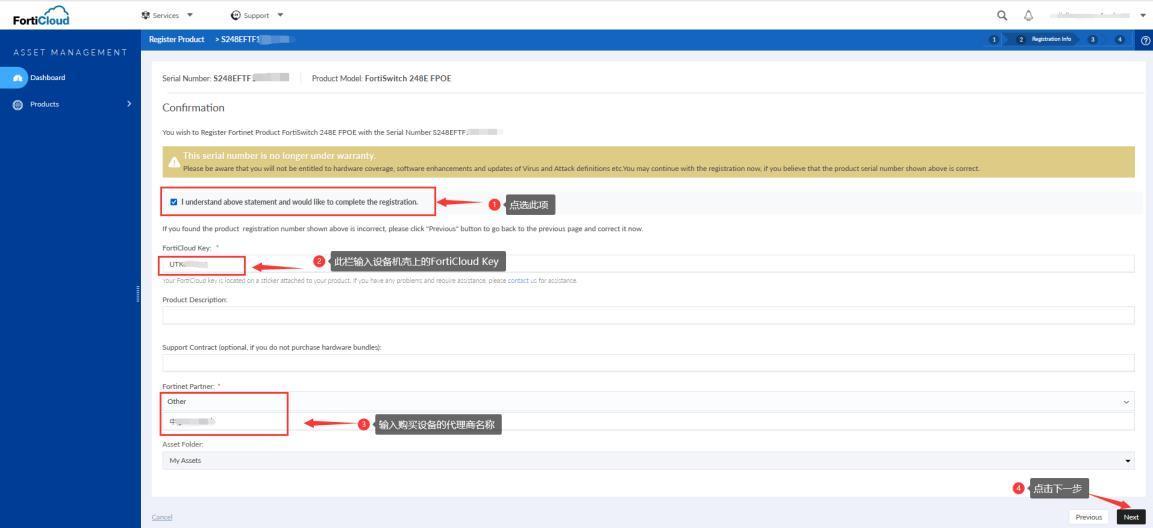
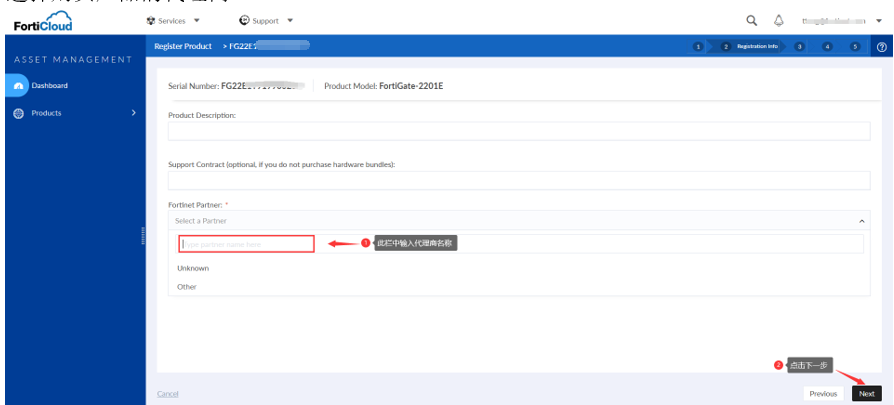
选择购买产品的代理商。
需要 FortiCloud Key 的设备注册流程:
不需要 FortiCloud Key 的设备注册流程:
确认
Agreement,点击Next。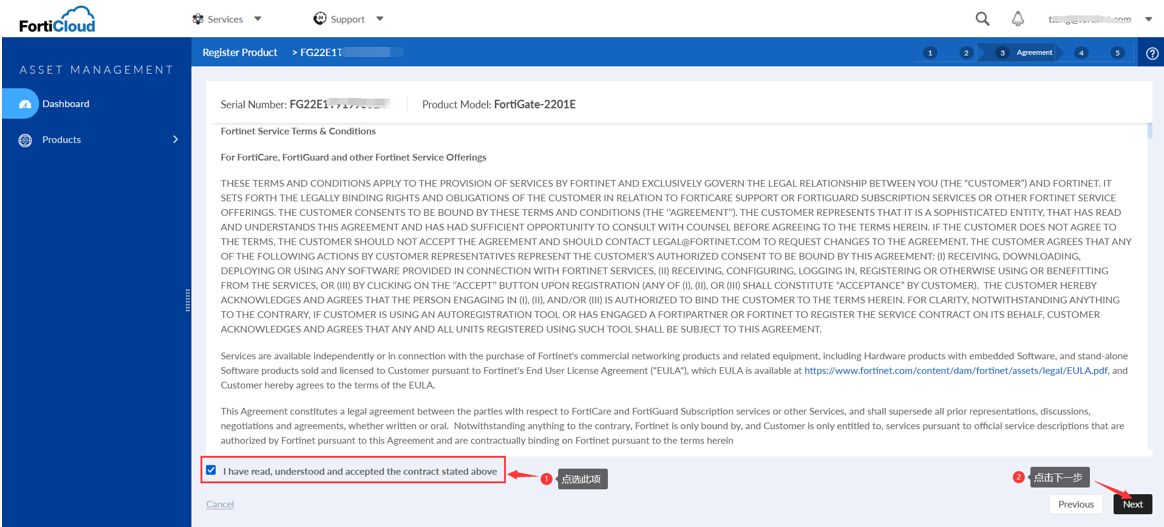
确认设备信息,点击
Confirm。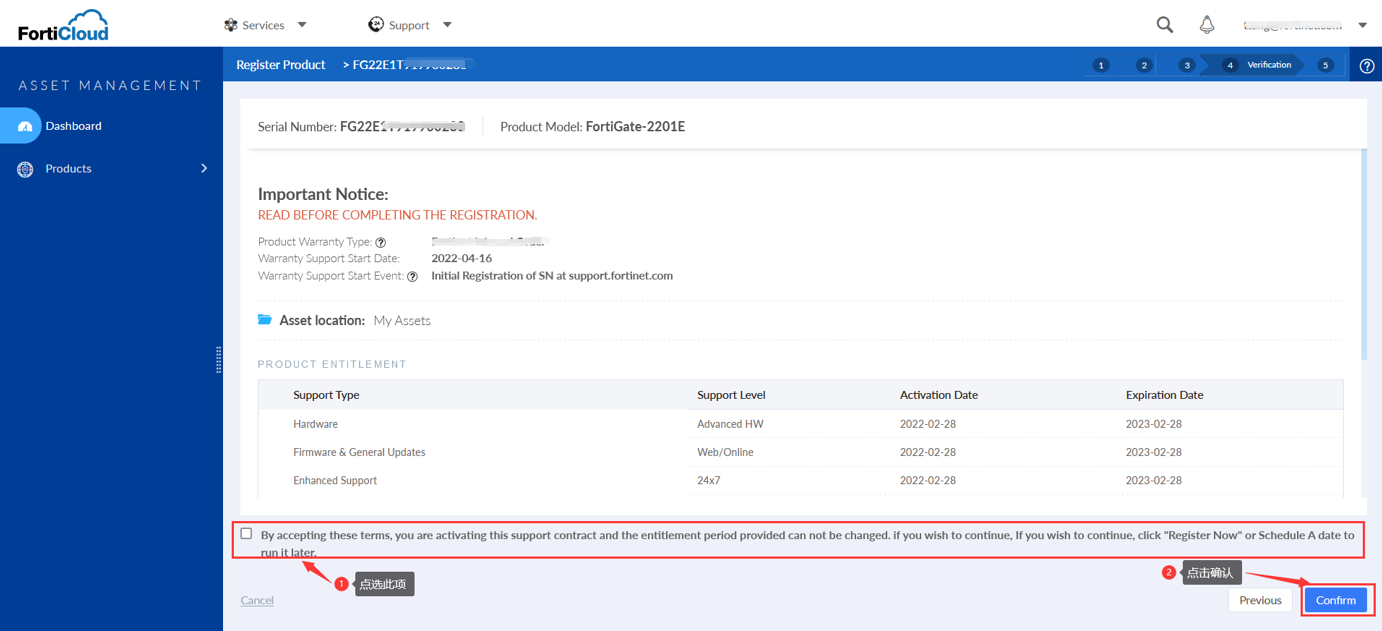
注册成功后,点击
Done。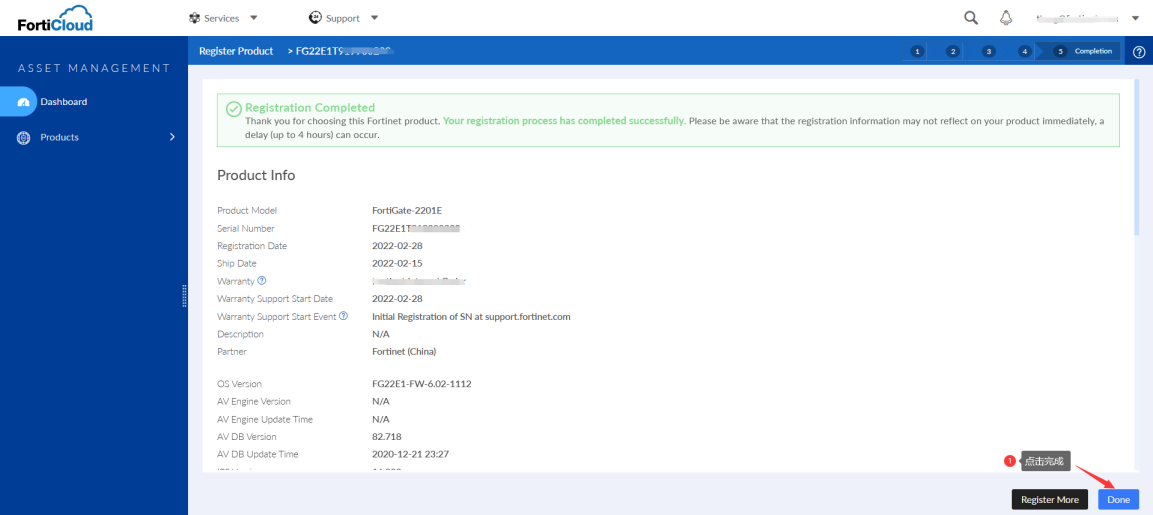
4. 查看产品列表
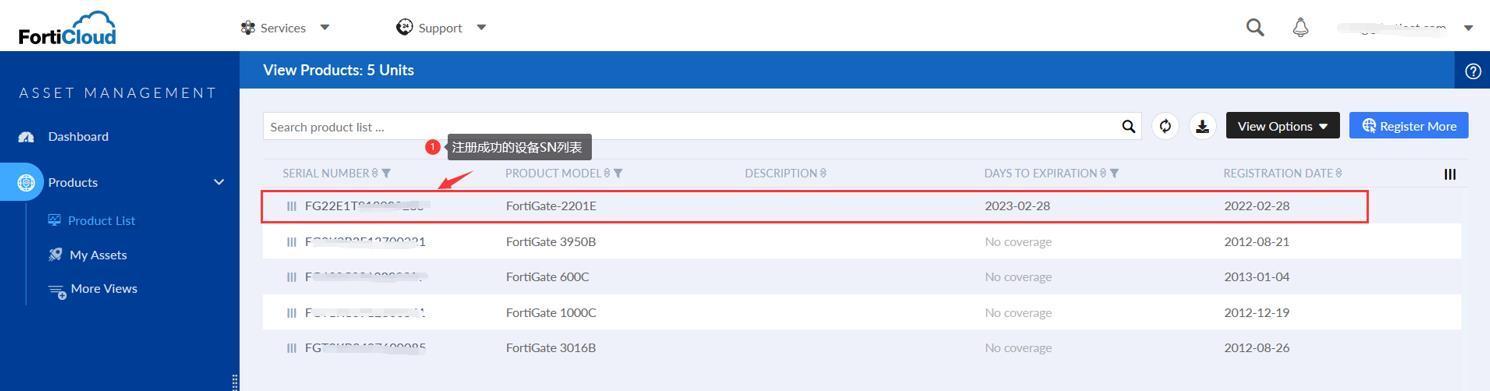
在产品列表中点击产品序列号,可查看该产品相关信息。